CygNet OPC Check Utility
The CygNet OPC Check utility (OpcCheck.exe) is a diagnostic utility used to connect, test, and troubleshoot CygNet-to-OPC server communication. It tests the communication status of messages passed between the utility and the OPC server so that you know communication is successful before connecting an OPCIS to the OPC server. It also acts as an OPC client.
While it has no direct CygNet messaging, the OPC Check utility is used to test the connection to any OPC server and to test whether the OPC items you are trying to pass in are resolved to points. Install the OPC Check utility on the same computer where the OPC Server and the OPC client is installed, so you can connect to it directly.
The CygNet OPC Check utility file (OpcCheck.exe) is stored in the CygNet\Utilities directory on the host server. To start the utility, browse to the directory using Windows Explorer and double-click the program icon.
Once connected, the utility automatically attempts to update every active item once per second. The communication steps followed when a connection is attempted are displayed at the bottom of the dialog box in the Status messages field. In a successful connection, the utility connects to the OPC server, maps OPC tags from the utility to items in the OPC server, then retrieves values from the corresponding OPC server items.
A typical workflow using the OCP Check is the following:
-
Click Connect and Disconnect and verify result in Status messages.
-
Click Add to Add New Item specify the OPC tag, click OK, and verify the result in Status messages.
-
Click Remove to remove an item, and verify result in Status messages.
-
Click Read device to get the value, and the value should update.
-
Click Query properties to list all the properties of the OPC tag.
-
Click Clear to clear the Status Messages list, if it gets too long to read.
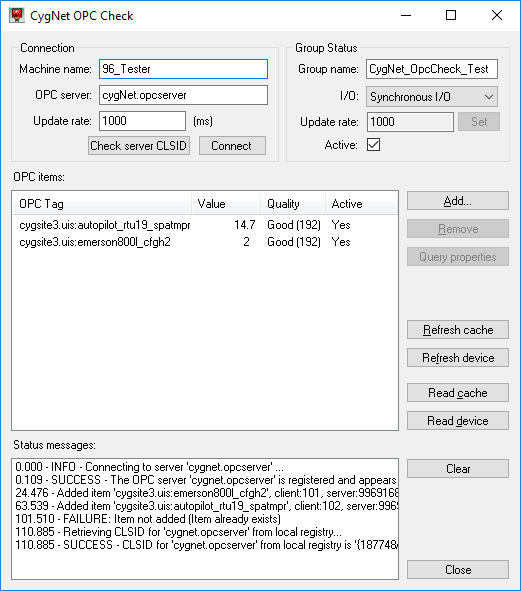
|
| Sample CygNet OPC Check Utility |
For more information, see the following subsections:
See also OPC Sync Utility.
Using the CygNet OPC Check Utility
To begin using the CygNet OPC Check utility, first ascertain the name of the OPC server and the name of the computer on which it is installed.
To Run the Utility
- In the Machine Name field, type the name of the computer on which the OPC server resides. If it resides on the same computer as the CygNet OPC Check utility, you may leave this field blank.
- In the OPC Server field, type the name of the OPC server. The default is CygNet.OPCServer.
- Click Connect. If you cannot connect to the OPC server, the issue is likely DCOM related.
- Once connected, select the relevant I/O option. See OPC documentation for details about synchronous and asynchronous requests.
- Check Active to activate the group. For an item in a group to be active, both the group and the item in the group must be set to Active.
- For each item you want to check connection with, click Add. The Add New Item dialog box appears.
- Type the exact tag name in the OPC Tag field. This tag must correspond to an OPC item in your connected OPC server. The tag is case sensitive.
- Check Active to activate the item and click OK. For an item in a group to be active, both the group and the item in the group must be set to Active.
- Review connection details in the Status messages field at the bottom of the CygNet OPC Check utility.
Note: If you are having trouble connecting to the OPC server, refer to MatrikonOPC for more information on configuring DCOM for your operating system.
CygNet OPC Check Utility Properties
The following table lists and describes the properties of the CygNet OPC Check utility.
| Property | Description |
|---|---|
| Connection | |
|
Machine Name |
The name of the computer on which the OPC server resides. If it resides on the same computer as the CygNet OPC Check utility, you may leave this field blank. |
|
OPC server |
The name of the OPC server. The default is CygNet.OPCServer. |
|
Update rate |
The update rate of the OPC server. |
|
Check server CLSID |
Click to retrieve the OPC server class ID from the local registry of the computer the OPC server resides on. The OPC server .dll must be registered on the local computer in order for this to work. If the OPC class ID is not retrieved by the CygNet OPC Check utility, there is a registry configuration problem that must be resolved on the local computer. |
|
(Dis)Connect |
Click to connect to or disconnect from the OPC server. This is not required to establish a connection. Any connection task (add, query, or read) establishes a connection. Disconnect to change servers. |
| Group Status | |
|
Group name |
The name of the CygNet OPC group. It is always set to CygNet_OpcCheck_Test and may not be altered by a user. |
|
I/O |
Specifies the kind of I/O for the group. Options are as follows:
|
|
Update rate |
The update rate in milliseconds when updating asynchronously. Enter a new value and click Set. |
|
Active |
Check to activate the group. For an item in a group to be active, both the group and the item in the group must be set to Active. You may activate a group but deactivate individual items in order to exclude only those items from data requests. |
| OPC items | |
|
OPC Tag |
Displays the unique name of an OPC item. This is not an OPC item as such. It is merely used to map data from an OPC item on the OPC server back to the utility for connection testing. |
|
Value |
Displays the value corresponding to a specific OPC item. |
|
Quality |
Displays a value that describes the validity of the data in the Value field. See OPC documentation for a complete list of relevant codes. |
|
Active |
Displays the state of an OPC item. |
|
Add |
Click to add a new OPC tag. When the Add New Item dialog box appears, type the exact tag name in the OPC Tag field. The tag is case sensitive. Check Active to activate the item. Tags must be added one at a time. There is no way to add tags in bulk. |
|
Remove |
Highlight an OPC tag and click Remove to remove the tag from the OPC items field. |
|
Query properties |
Click to display query details in the Status messages field. Query details consist of an extensive list of an item's properties. |
|
Refresh cache |
Click to refresh the OPC server's cache. |
|
Refresh device |
Click to refresh the CygNet device. |
|
Read cache |
A user-initiated one-time read of an item's value data from the OPC server's cache. This data might not be the latest possible data. |
|
Read device |
A user-initiated one-time read of an item's value data from the relevant CygNet device. This is the latest possible data since it comes from the CygNet device's current value service. |
| Status messages | |
|
Clear |
Click to clear all existing messages in the Status messages field. |


